How to Block Instagram Reels and YouTube Shorts but Keep Your Messages (iPhone & Android, 2026)
Screen Time blocks all of Instagram or none of it. Here's what actually works for hiding Reels and Shorts while keeping DMs: YouTube's zero-minute limit, browser setups, filter apps, and Android's in-app blocking.
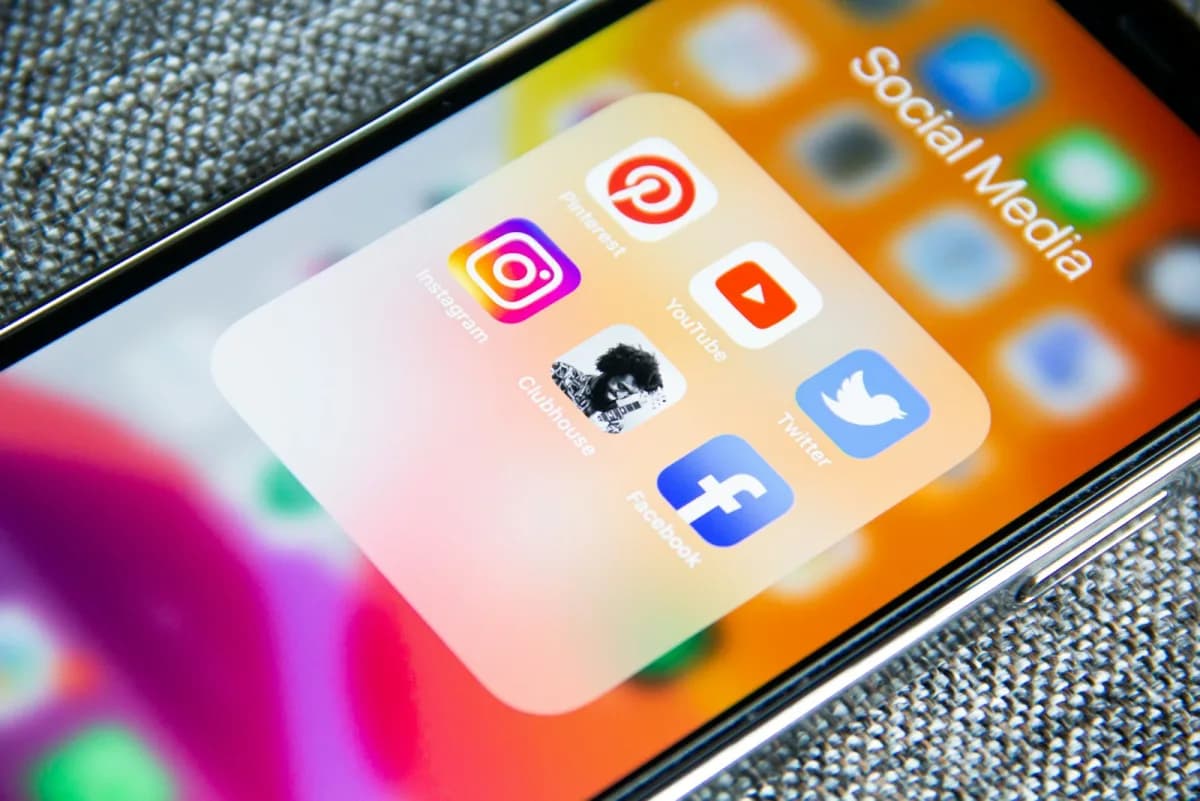
A post in r/digitalminimalism from October 2026 describes the problem well: "as the app updates and reels get pushed further down your throat in every way, im kind of running out of ways to avoid them."
You don't want to delete Instagram. Your friends message you there. You don't want to lose YouTube either, because it's where you learn things. You just want the endless short videos gone.
That turns out to be harder than it should be, especially on iPhone. Here's what works, what doesn't, and what each option costs you.
TL;DR
- YouTube, any phone: Set the Shorts feed limit to zero (You → Settings → Time management). It's only a speed bump, because you can ignore it.
- Instagram on iPhone: Nothing can hide Reels inside the real app using Apple's tools. Use Instagram in a browser, or a filter app that loads the website.
- Instagram and YouTube on Android: AppBlock can block just Reels and Shorts inside the real apps.
- Only need DMs? Delete the app, log in through a browser, and don't save your login.
Why Your App Blocker Can't Do This on iPhone
Screen Time and the apps built on it work at the level of a whole app. They can lock Instagram, but they can't see what's on the screen inside it.
AppBlock's own help page explains the limit plainly: it "cannot block specific features or sections within an app (like Reels, Shorts, or Stories) because iOS doesn't give third-party apps that level of control." The company calls this a platform limitation rather than something it can work around.
That's why this request keeps appearing. One iPhone user put it this way in November 2026: "Most importantly, I want something that works within the original apps." Another replied that this probably isn't possible on iOS. Some newer apps do claim to work inside the native apps, so if you try one, use the free trial and check for yourself before paying.
Every iPhone option below works around that limit in one of two ways: by using a setting the app itself offers, or by leaving the app and using the website.
YouTube Shorts: Start With the Built-In Limit
YouTube has its own control, and it's the easiest thing on this list.
- Open the YouTube app and tap the You tab
- Tap Settings, then Time management
- Tap Shorts feed limit
- Choose a limit. Google says the list includes zero
The catch: Google says that when you reach the limit, you can dismiss or ignore it. Users noticed quickly. One person who tried it wrote, "it's also very easy to hit 'ignore limit for today.'" Another said "after a while it just becomes muscle memory to click ignore."
Still, a third user called it "a speed bump" that gives you a second to ask why you're watching. If you only need a moment to catch yourself, that may be enough.
Stronger options for Shorts
- Turn off watch history. Google says that with no significant recent history and history turned off, recommendations on the YouTube homepage are removed. Users report this cuts down the pull of the home feed, but you lose your watch progress on long videos, and one user noted Shorts can still appear.
- Use YouTube in a browser. Users recommend Brave's content filtering for hiding Shorts, and the Untrap extension for Safari. These are user reports rather than tests of ours, and menus can change.
- On Android, use the in-app blocking described below.
Instagram Reels on iPhone: Your Real Options
Instagram doesn't appear to offer a setting that removes Reels. We couldn't find one in official help material, and users who went looking came back empty-handed: "i just checked, instagram doesnt have those settings."
Option 1: Use Instagram in a browser (free)
This was the top answer in a recent r/digitalminimalism thread: "Delete the app and log in via browser." The commenter said videos stop autoplaying, and suggested not saving the login. Another added that "not saving the login makes a big difference."
You keep DMs and lose some convenience, and that friction is part of why it works.
Option 2: Use a filter app (free or paid)
These apps load the real Instagram website inside their own browser and remove the parts you don't want. They don't change the Instagram app itself.
| App | What the listing says | Price | Keep in mind |
|---|---|---|---|
| Awhile | Hides Reels, Feed, Explore, and Stories; keeps DMs, profiles, and notifications | Free tier, with paid options | New in 2026, with only a handful of App Store ratings |
| Nope | Toggles for Instagram Reels and YouTube Shorts; says DMs keep working | Free | New in 2026, rated 2.5 from only 4 ratings when we checked |
| Dull | Removes Reels and Explore by default | $3.99/month or $14.99/year, 7-day trial | Temporary bypass button built in |
We haven't tested these ourselves, and these are all young apps, so treat the table as a starting point. One Redditor who tried several blockers said they're "either paid services or don't work," so try before you pay.
Before you log in: you're typing your Instagram password into someone else's app. Check who makes it, read the App Store privacy label, and turn on two-factor authentication first.
Option 3: Switch to the Following feed (free)
If you keep the app, a commenter suggests tapping the Instagram logo at the top and switching to Following, for "way less reels than the main feed." This doesn't remove the Reels tab, but it's easy to try and costs nothing.
Option 4: Separate DMs from Instagram
One r/nerdfighters post recommends Beeper, a messaging app that collects your chats in one place, so you can read Instagram DMs without opening Instagram. Another user there says they were disappointed after it changed hands, so check its current state before you switch.
Reels and Shorts on Android: Much Easier
Android gives apps more access, so blocking inside an app is possible.
AppBlock supports this from version 7.5.0. According to its help page, you can block:
- Instagram: Reels and Stories
- YouTube: Shorts
- Snapchat: Stories and Spotlight
- WhatsApp: Channels and Statuses
To set it up, create a Quick Block or Schedule, tap Apps, select the app, then pick the sections to block. Leave the main app unblocked so messaging still works. It needs the Accessibility permission, and you can combine it with a usage limit, such as 15 minutes of Instagram a day with Reels blocked all the time.
A user in r/nosurf also reports that StayFree can block or limit short-form video inside apps.
What about modified Instagram apps?
You'll see modded versions and patched clients recommended on Reddit. We'd skip them. You'd be giving your login to unofficial software, and you may be breaking the app's terms.
What About Reels Friends Send You?
This is the hard part. As one user explained, "literally everyone uses it socially, esp by sending reels." Most blockers treat every Reel the same.
Before you commit to any setup, ask a friend to send you a Reel and see what happens. If it won't open, decide whether that's a dealbreaker. One Redditor took the other route, telling friends they no longer use Instagram DMs at all.
Which Setup Should You Choose?
| Your situation | Try this |
|---|---|
| YouTube Shorts is the only problem | Shorts feed limit at zero, then a browser if you keep ignoring it |
| iPhone, you mainly need Instagram DMs | Delete the app and use a browser without a saved login |
| iPhone, you want a cleaner Instagram | A filter app, after checking its privacy label |
| Android | AppBlock's in-app blocking |
| You keep bypassing everything | Stronger friction, like a physical blocker or a second phone for social media |
The Digital Feng Shui Angle
Feng Shui rarely asks you to tear down a house because one doorway is badly placed. It looks for the specific spot where energy rushes in, then changes that spot.
Reels and Shorts are that doorway. Messages from friends are a slow, useful flow. The endless feed is a rush. Blocking the whole app treats them as the same thing, which is why so many people undo the block. Close the one door that's causing the problem, and the rest of the house can stay open.
Where to Go Next
- Best iPhone App Blockers 2026 — What whole-app blockers can do when you're ready for a harder limit.
- AppBlock vs BlockSite — Which blocker fits your phone and browser.
- Does Grayscale Help Phone Addiction? — Another low-cost way to make feeds less appealing.
- How to Quit Social Media — If you decide the whole app has to go.
Frequently Asked Questions
Can you block Instagram Reels but keep messages on iPhone?
Not inside the regular Instagram app using Screen Time or a standard app blocker, because they control whole apps. The practical options are using Instagram in a browser, or using an app that loads the Instagram website with Reels hidden, such as Awhile, Nope, or Dull. Your DMs stay available in those setups.
Can you turn off Reels in Instagram settings?
We couldn't find an official setting that removes the Reels tab. You can set a daily time limit and turn off Reels notifications, but neither hides Reels.
Can you set the YouTube Shorts limit to zero?
Yes. In the YouTube app, tap You, Settings, Time management, then Shorts feed limit. Google says the options include zero. It's only a reminder, though: you can dismiss it and keep watching.
Can you block Reels on Android without blocking Instagram?
Yes. AppBlock on Android (version 7.5.0 and later) can block Instagram Reels and Stories, YouTube Shorts, and similar sections while leaving the rest of the app working. It needs the Accessibility permission.
Are third-party Instagram apps safe?
Be careful. Filter apps ask you to log in to Instagram inside their own browser, so check the developer and privacy label first, and use two-factor authentication. We don't recommend modified copies of the Instagram app.
Tagged
More in Smartphone Feng Shui
AppBlock vs BlockSite: Which Blocker Fits Your Phone and Browser? (2026)
7 min read
Free Brick Alternative: How to Make a DIY Brick With Foqos and a $1 NFC Tag (2026 Setup Guide)
12 min read
How Kids Bypass Screen Time on iPhone and iPad (and the Setting That Stops Each Trick, iOS 26 & iOS 27)
14 min read
Ready to start from the beginning?
The 30-Day Digital Feng Shui Challenge is a structured, day-by-day program to redesign your digital environment for good.
Start the 30-Day Challenge →