Free Brick Alternative: How to Make a DIY Brick With Foqos and a $1 NFC Tag (2026 Setup Guide)
You can 'brick' your phone without buying a Brick. Step-by-step setup for Foqos, the free open-source iPhone app, with a cheap NFC sticker: which tags work, which of its 12 modes to pick, where to put the tag, the strict settings that stop you cheating, and the Android equivalents.
Brick is a $59 grey plastic block. It has no screen and no battery. You tap your phone on it to lock distracting apps, and tap it again to unlock them. It works because the block stays on your kitchen counter while the urge to scroll happens on the sofa.
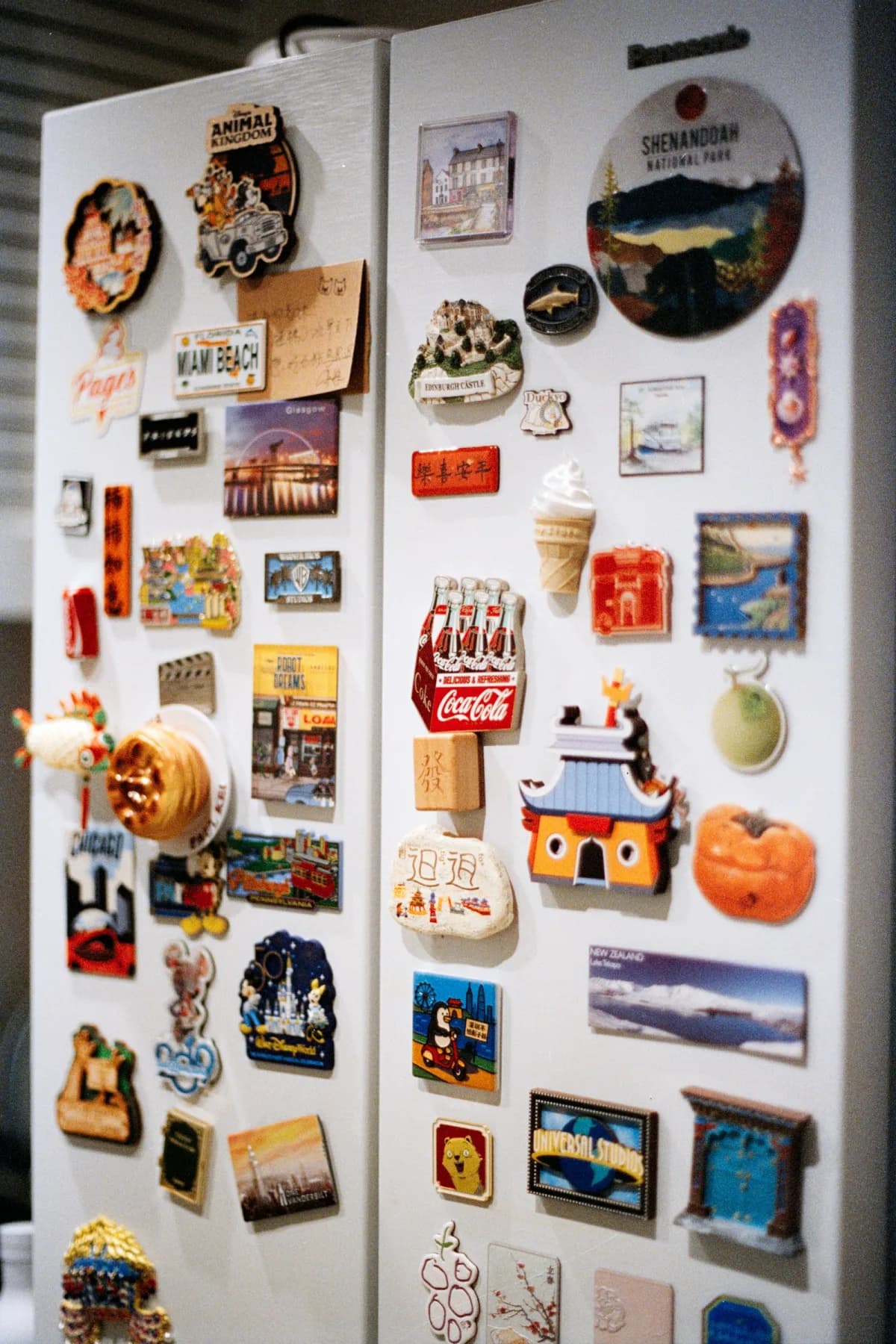
The mechanism is so simple that people keep building their own. On Xiaohongshu, the Chinese lifestyle app, a user posted "I DIY'd a Brick alternative for 3 yuan" (about 40 US cents): a free app, a few NFC stickers, and a small magnet. They turned the tag into a fridge magnet and reported that after a week, it had cut their screen time. In English-speaking communities, one r/nosurf thread was simply titled "Foqos is amazing free version of Brick."
This guide covers how to set it up properly, based on Foqos's documentation and source code and on reports from people who use it.
TL;DR
- Foqos is a free, open-source iPhone app (MIT license, no subscription) that blocks apps until you scan an NFC tag, QR code, or barcode.
- Any blank NFC sticker works. NTAG213 is the common type. No writing needed.
- Best starting mode: NFC + Manual. Start the block in the app, end it only by tapping the tag.
- Close the loopholes: Strict Unlocks, Prevent App Deletion, and on iOS 26.4+, a Screen Time passcode someone else holds.
- The tag's location is the whole point. Not the nightstand.
- Android: use Lock or Switchly instead. Foqos is iPhone-only.
Why the Tag Works (It's Not Willpower)
The Xiaohongshu user explained why they needed something like Brick at all. They'd heard that adding physical friction builds habits better than willpower, but the usual advice, keeping the phone in another room, didn't work for them: they needed the phone for their alarm and for music at night. A tag solved it. Their routine changed from:
"Wake up → grab phone → scroll for half an hour"
to:
"Wake up → want to scroll → have to walk to the living room and tap the fridge to unlock the apps."
One commenter on a Chinese "make your phone harder to use" post described the same upgrade from app timers: "I went further and made unlocking a physical action. I have to get up and tap a card in another room. It's harder to get around than waiting a few seconds."
Lock box owners describe the same mechanism. One person who uses a lock box every night put it this way: "Putting it in takes a few seconds. I don't have to hold out for long." You make the decision once, in a moment when you're thinking clearly, and the arrangement does the rest. The tag doesn't make scrolling impossible. It moves the decision away from the moment you're tempted.
What You Need
- An iPhone on iOS 17.6 or later. Every iPhone that can run that version can read NFC tags.
- An NFC sticker. Foqos says common tags such as NTAG213 work. Multi-packs often cost a few cents per tag, and people on Hacker News quote about 20 cents each. NTAG215 and 216 are the same family and widely used, though Foqos doesn't name them specifically.
- Or no tag at all. Foqos accepts QR codes and barcodes as keys. One Hacker News commenter: "You can literally buy a candy bar and tape the barcode to an index card and that will work. The physical layer is massive."
- Something to put the tag on. A fridge magnet, a block of wood, a keyring. Foqos's community has even shared a 3D-printable "brick" case for 25 mm tags.
Do you need to write to the tag? No. Foqos's code falls back to the tag's built-in ID when the tag is blank, so a fresh sticker works straight out of the pack. Writing is only needed for one advanced trick (starting Foqos without opening the app, covered below). Foqos's help center also warns that rewriting a tag can break a saved unlock, and that a tag working in another NFC app doesn't guarantee it works in Foqos.
Step-by-Step Setup
1. Install Foqos and grant Screen Time access
Foqos, listed as Foqos – Tap to Block on the App Store, is made by independent developer Ali Waseem. It's free, with no account and no ads. The only purchases are optional tips. It runs on Apple's Screen Time framework, the same one Brick, Opal, and most iPhone blockers use, so it will ask for Screen Time permission.
2. Create a profile
A profile is a set of apps and websites to block plus a rule for starting and stopping. Start small: your two or three worst apps. People who block everything on day one tend to hit the emergency unblock by lunchtime.
Foqos can block websites through Screen Time too, so add the web versions of the apps you're blocking (instagram.com, tiktok.com). Otherwise Safari becomes the back door.
3. Pick a strategy
Foqos has 12 strategies. The ones that matter for a DIY Brick:
| Strategy | Starts | Ends | Good for |
|---|---|---|---|
| NFC | Tap tag | Tap tag | The classic Brick behavior |
| NFC + Manual | Button in the app | Only by tapping the tag | Starting a block wherever you are |
| NFC + Timer | Tap tag | When the timer ends, or early with a tap | Work sessions with a set length |
| NFC + Pause Timer | Tap tag | One tap pauses, a second tap during the pause stops | Planned short breaks |
| Temporary Access | Tap tag | A set number of short opens, then tap to end | Apps you need briefly, like messaging |
QR and barcode versions of each exist too. NFC + Manual is the best place to start. It fixes the classic Brick problem of having to be near the tag to start a block. You can lock yourself out from anywhere, but you have to go to the tag to get back in.
4. Register your tag and turn on Strict Unlocks
Scan the sticker in Foqos. Then turn on Strict Unlocks for the profile, so that only that tag or code can end the session. Without it, any NFC tag (your transit card, a hotel key) could work.
5. Close the escape routes
This is where most DIY setups fail, so don't skip it.
- Prevent App Deletion. Foqos's help center says this setting "prevents deleting any app during the session, including while on a break." That stops two tricks at once: deleting Foqos, and deleting and reinstalling a blocked app. One Xiaohongshu commenter said this was the difference for them: "My old method always got broken because I'd just uninstall the app."
- The Screen Time access toggle. Like every Screen Time blocker, Foqos can be killed by going to Settings → Screen Time → Apps with Screen Time Access and switching it off. On iOS 26.4 or later, Foqos's guidance is to have a trusted person set a separate Screen Time passcode (Settings → Screen Time → Lock Screen Time Settings; on iOS 27 it's under Manage Screen Time), turn on Content & Privacy Restrictions, then check that switching Foqos off now asks for that code. Our unbreakable app blocker guide covers this setup and its reported bugs.
- Require Foqos to Stop. This setting blocks Shortcuts, Control Center, Spotlight, and links from ending a session, so the only way out is through the app and your tag.
- Emergency unblocks. Foqos gives you three emergency unblocks, shared across all profiles, which reset every four weeks by default. You can turn them off, but think twice: they're what makes a strict setup safe to live with.
6. Put the tag somewhere that creates distance
This decides whether the whole thing works. The rule from every success story: the tag lives where the urge doesn't.
- Bedtime scroller: the fridge or the front door, not the bedroom.
- Work-hours scroller: leave the tag at home.
- Evening scroller: keep it at your desk at work.
One r/ADHD user takes it further: "Mine goes on with a schedule, but off with an RFID tag that I put way at the top of my guest room closet. Literally need a step ladder to get to it."
Schedules: The Fix for "I Forgot to Start It"
The most common Foqos failure isn't cheating. It's forgetting. An r/digitalminimalism user's first day ended with them pressing the emergency stop: "My NFC tag is back home so I used my phone pretty heavily for the next hour." The developer replied in the thread: "Have you tried setting up a schedule? It'll automatically turn on profiles."
Schedules start a profile automatically at set times. Each profile has one schedule and only one profile runs at a time, so for separate windows (work hours, evenings) duplicate the profile and give each copy its own schedule. Schedule on, tag off is the most robust DIY setup: you never have to remember to start, and you always have to walk to stop.
One honest caveat from Foqos's GitHub: a user reported that on bad days they simply edit the schedule before it starts, and that a Screen Time passcode doesn't stop that. If that sounds like you, keep schedules simple and the tag far away.
Starting Without Opening the App
Some users find it annoying that, by default, you open Foqos and then scan, rather than just tapping the phone on the tag. An r/NFC user complained: "It seems I first have to open the app, click on starting the session, and then it asks me to scan the tag... I feel that defeats the purpose."
Two workarounds from Foqos's documentation:
- Write the profile link to the tag. Each profile has a link (
foqos.app/profile/...). Write it to the tag with an NFC writing app, and tapping the tag shows a notification that opens straight into that profile. - Use a Shortcuts automation. iOS's Shortcuts app can run an automation when you tap an NFC tag. Foqos provides Shortcuts actions (check if a session is active, start, stop), and its README walks through building a tap-to-toggle automation.
Two small frustrations from early users: iPhone NFC scanning can feel slow, and the developer has acknowledged occasional "ghost scans." Hold the top edge of the phone flat on the tag for a moment.
What About iPad, Android, and Mac?
- iPad: Foqos is designed for iPhone. It can be installed on iPad, but iPads have no NFC reader, so you'd need QR or manual modes. The Xiaohongshu user who built the fridge-magnet setup found the same thing when a commenter asked about locking a tablet at night.
- Android: there's no official Android Foqos. The developer points Android users to Switchly (open source, NFC/QR/barcode, optional premium) and Lock (free, MIT-licensed, NFC, Android 13+). Lock's own README is candid that uninstalling it restores access, so pair it with whatever app-removal protection your phone offers.
- Mac: a free Foqos companion app (macOS 14+) syncs website blocking from your iPhone through iCloud.
DIY vs Buying a Brick
| Foqos + sticker | Brick | |
|---|---|---|
| Cost | Free app, tags for cents | $59 one-time, no subscription |
| Platforms | iPhone only | iPhone and Android |
| Keys | Any NFC tag, QR code, or barcode | The Brick |
| Emergency exits | 3, reset every 4 weeks | 5; more by emailing support |
| Anti-cheat | Prevent App Deletion, Strict Unlocks | Strict Mode |
| Extras | 12 strategies, schedules, timed breaks, Mac app | Polished design, remote start (you still need the Brick to unlock) |
Brick details from getbrick.com; Foqos details from its website, App Store listing and GitHub, as of October 2026.
Some people buy the Brick anyway, and that's reasonable. A solid object you paid for is harder to ignore than a sticker. One Xiaohongshu commenter, on why expensive lock boxes work: "It's expensive for a reason. That way you can't bring yourself to smash it." Others go the other way: "I was curious about Brick but I felt bad buying another piece of plastic waste."
For a full comparison of the commercial options, see Brick vs Unpluq.
Where It Still Fails
A tag can't fix two things.
The habit moves to another screen. Users describe this in almost the same words. One Xiaohongshu commenter: "After locking my phone, I caught myself opening my laptop in the middle of studying." Another, under the fridge-magnet post: "I lock my phone before bed and then I want to play on my iPad." Block the same sites on your laptop (Foqos's Mac app helps), or keep the tablet out of the bedroom too.
You can always find a second device. The top-liked reply under a viral Chinese phone-lock invention was short: "And then I had two phones." If you're tempted to keep an old phone around as a loophole, our guide to using a second phone deliberately covers when that helps and when it backfires.
The Digital Feng Shui Angle
Feng Shui pays attention to thresholds: the front door, the bedroom door, the line between the room where you work and the room where you rest. Crossing one should mean something.
A DIY Brick creates a threshold where there wasn't one. The fridge isn't just where food is anymore. It's the gate between "I'm on my phone" and "I'm not." The tag costs less than a dollar, but its location is a design decision about your home: where distraction is allowed to start, and how far you have to walk to let it back in.
Where to Go Next
- Brick vs Unpluq — what owners of the commercial blockers report after months.
- Unbreakable iPhone App Blocker — close the Screen Time loophole every blocker shares.
- Timed Phone Lock Boxes — when you want the whole phone gone.
- ScreenZen vs Opal — software friction vs software hard blocks.
Frequently Asked Questions
Can you brick your phone without a Brick?
Yes. The free iPhone app Foqos does the same core thing as Brick: it blocks chosen apps and websites until you tap an NFC tag (or scan a QR code or barcode). A blank NFC sticker costs well under a dollar. On Android, free apps such as Lock and Switchly offer NFC unlocking.
Is Foqos really free?
Yes. Foqos is open source under the MIT license, with no ads, no account, and no subscription. The only in-app purchases are optional tips to the developer. The developer also links to NFC tags on Amazon through an affiliate link, which he's said publicly.
What NFC tags work with Foqos?
Foqos says common NFC tags such as NTAG213 work. You don't need to write anything to the tag: if it's blank, Foqos uses the tag's built-in ID. You only need to write a link to the tag if you want to trigger Foqos from outside the app. A QR code or any product barcode also works as the "key."
Does Foqos work on Android or iPad?
No official Android version exists; the developer points Android users to Switchly or Lock. Foqos is designed for iPhone. It can be installed on iPad, but iPads have no NFC reader, so you'd have to use QR code or manual modes there.
Can you cheat Foqos?
The main bypass is the same as for Brick and every Screen Time-based blocker: switching off the app's Screen Time access in Settings. Foqos's own guidance is to have a trusted person set a Screen Time passcode on iOS 26.4 or later and check that turning off Foqos asks for it. Turn on Prevent App Deletion too. Foqos also has three emergency unblocks that reset every four weeks.
What's the difference between Foqos and Brick?
The mechanism is the same. Brick is a $59 magnetic block with a polished app, five emergency unbricks, and support for Android as well as iPhone. Foqos is free, iPhone-only, uses any NFC sticker, QR code, or barcode, and has more modes (12 strategies, schedules, timed breaks). With Brick you pay for the hardware design and the support; with Foqos you do the setup yourself.
Tagged
More in Smartphone Feng Shui
How Kids Bypass Screen Time on iPhone and iPad (and the Setting That Stops Each Trick, iOS 26 & iOS 27)
14 min read
iPhone Alarm Didn't Go Off? Sleep Focus, Attention Aware, and the Other Real Causes (iOS 26 & iOS 27 Checklist)
12 min read
Using a Second Phone Just for Social Media (or Work): Does It Actually Reduce Screen Time?
11 min read
Ready to start from the beginning?
The 30-Day Digital Feng Shui Challenge is a structured, day-by-day program to redesign your digital environment for good.
Start the 30-Day Challenge →