How to Organize Your iPhone Home Screen with Feng Shui (2026 Guide)
Tired of a cluttered iPhone? This step-by-step guide uses Feng Shui principles to organize your home screen — fewer distractions, less screen time, more focus.
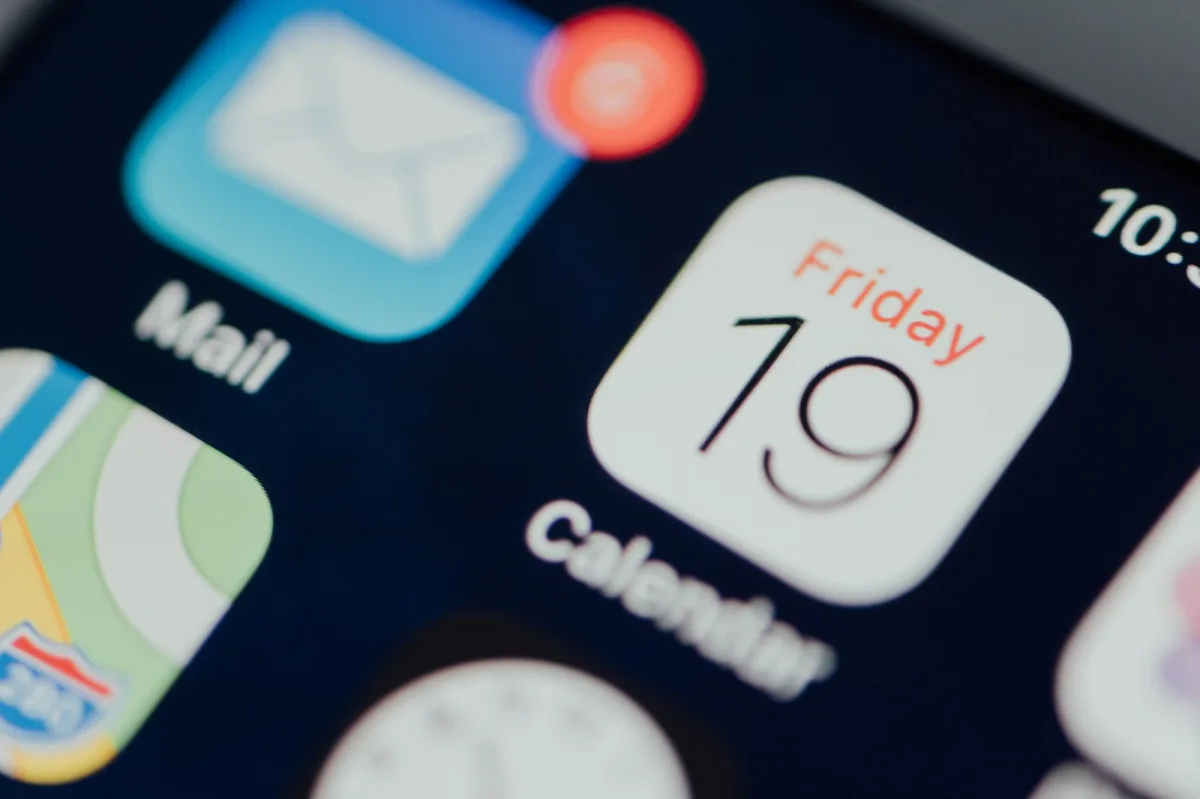
You unlock your iPhone. Dozens of app icons stare back at you — some useful, most not. A row of red notification badges. Three pages of apps you forgot you had. Before you've done anything intentional, your attention has already been claimed.
This is not a phone. This is a slot machine in your pocket.
The good news: it's fixable. And you don't need a new phone, a minimalist launcher, or a discipline of steel. You need a framework for designing your digital space with intention. That framework is Digital Feng Shui — and this guide will walk you through applying it to your iPhone home screen, step by step.
This is a practical guide. By the end, you'll have a home screen that is genuinely different — calmer, more purposeful, and more yours.
Before You Start: The Feng Shui Principle Behind Phone Design
Classical Feng Shui holds that your physical environment constantly communicates with your subconscious. The arrangement of your space — what's prominent, what's hidden, what faces you when you enter — shapes your mental state before you've consciously registered anything.
Your iPhone home screen works the same way. Every app icon is a visual demand. Every badge is a micro-stressor. The default home screen, as most people maintain it, is a space of chaos — the digital equivalent of a room where furniture has been dropped randomly from a great height.
The goal of this guide isn't to make your phone look aesthetic (though it will). It's to make it function like a well-ordered space: everything present has a reason to be there, and the arrangement supports your actual intentions.
Step 1: The Full Audit — What Are You Actually Working With?
Before you change anything, spend five minutes understanding what you have.
Go through every app on your phone and sort them mentally into three categories:
Category A — Daily essentials: Apps you use every day by conscious choice. Maps, Messages, your calendar, your notes app, your banking app. These serve clear functions.
Category B — Intentional but not daily: Apps you use regularly but not every day. Specific tools, reference apps, travel apps, the app for your gym's booking system. Useful when needed, not needed constantly.
Category C — Passive, reflexive, or forgotten: Apps you open on autopilot without deciding to. Social media feeds, news apps, games. Or apps you downloaded months ago and haven't opened since.
Most people find that Category C makes up 40–60% of their installed apps.
Action Step
Do this audit now — it takes 5 minutes. You don't need to make any decisions yet. Just notice the proportion of each category. The numbers are usually surprising.
Step 2: The Great Clearing — Create Your Bright Hall
In Feng Shui, the Ming Tang — the Bright Hall — is the open, unobstructed space at the entrance of a home. It allows Chi to gather and settle before moving through the space. Without it, energy rushes in chaotically and the whole space feels unsettled.
Your iPhone home screen is your Bright Hall.
How to clear it:
- Create a single folder. Name it anything — "Archive," "Storage," "Apps."
- Move everything into this folder. Every app. Even the ones you're certain you need on your home screen. Clear it completely.
- Leave your home screen blank except for the dock at the bottom (we'll design that separately).
Now sit with this for a moment. Notice how the blank home screen feels. Most people describe a strange mix of discomfort and relief — the discomfort of unfamiliarity, and the relief of visual space.
This blank state is your starting point. Everything that returns to your home screen will be a conscious decision.
Step 3: Design the Dock — Your Four Pillars
The dock at the bottom of your iPhone screen is prime real estate — it appears on every page and is the most naturally accessible area. In Feng Shui terms, it's the load-bearing structure of your digital home. Get it right and everything else becomes easier.
The Four Pillars principle: Limit your dock to exactly four apps — your four most fundamental tools. Not your most-used (those might be your most-reflexive). Your most genuinely essential.
For most people, these four fall into categories like:
- Communication (Messages, WhatsApp, or your primary messaging tool)
- Navigation (Phone calls — actual calls are still important)
- Organization (Calendar or your primary task manager)
- Access (Safari, or whatever browser you use for intentional browsing)
Notice what's absent from most people's dock using this framework: social media. Email, often. Entertainment. These are not foundational — they are additional, and they belong in additional places.
On Email: Many Digital Feng Shui practitioners recommend removing email from your dock entirely. Email is a reactive tool that serves other people's agendas. Check it intentionally, in designated windows, not reflexively every time you unlock your phone. Move it to your second screen.
Step 4: Build Your First Screen — The Intentional Layer
Now, from your archive folder, carefully select apps to return to your main home screen. The criterion is simple: does this app represent something I want to do by default?
Apps on your home screen communicate your intentions to yourself. They answer the question "what am I here for?" every time you unlock your phone. Make your answer intentional.
A practical layout framework:
Organize your home screen apps into quadrants based on the time of day you're most likely to use them:
Top-left (Morning Energy — Wood element): Learning, growth, creativity. Your Kindle or reading app, your journaling app, your language learning tool. Apps that represent how you want to start your day.
Top-right (Productivity — Metal element): Focus, work, clarity. Your notes app, your to-do list, your work tools. Not email — your work-creation tools.
Bottom-left (Connection — Fire element): Meaningful communication. Your messaging apps — but only for the platforms where you have genuine, personal conversations. Not platforms where you mostly consume.
Bottom-right (Navigation — Water element): Tools for moving through the world. Maps, your calendar (time is where you're going), your health tracking app.
On the number of apps: Most people who complete this exercise settle on 8–12 apps on their main home screen. Some go as low as 4–6. If you find yourself trying to put 20+ apps back, revisit your Category C audit — some of those "essentials" may not be as essential as you think.
Step 5: Handle the Category C Apps — The Hard Decisions
This is where the real Feng Shui work happens. Category C apps — the reflexive, passive, or addictive ones — deserve individual consideration.
For social media apps:
Ask yourself a hard question: Does the time I spend on this platform move toward my goals or away from them?
Then decide:
- Delete entirely if it consistently makes you feel worse, generates comparison or anxiety, or you use only from habit
- Keep but relocate to your archive folder with no home screen presence — accessible when intentionally sought, invisible when reflexively grabbed
- Replace with browser version — accessing Instagram through Safari rather than the app significantly reduces compulsive use by removing the dopamine-optimized native interface
For news apps:
Breaking news notifications are among the highest-Sha Chi features in the digital world — engineered for anxiety. Consider:
- Remove all news app notifications
- Designate one 10-minute window per day for news
- Use a newsletter or RSS reader for curated, non-infinite news consumption
For games:
Mobile games designed around variable reward loops (loot boxes, daily check-ins, "energy" systems) are among the most carefully engineered dopamine traps ever created. They deserve honest assessment. If a game brings you genuine, deliberate enjoyment, keep it — hidden from your home screen. If it's a reflex-open habit, delete it.
Action Step
The delete test: For any app you're uncertain about, delete it. Not archive — delete. If you genuinely need it, you'll reinstall it within 48 hours. If you don't reinstall it within a week, you didn't actually need it.
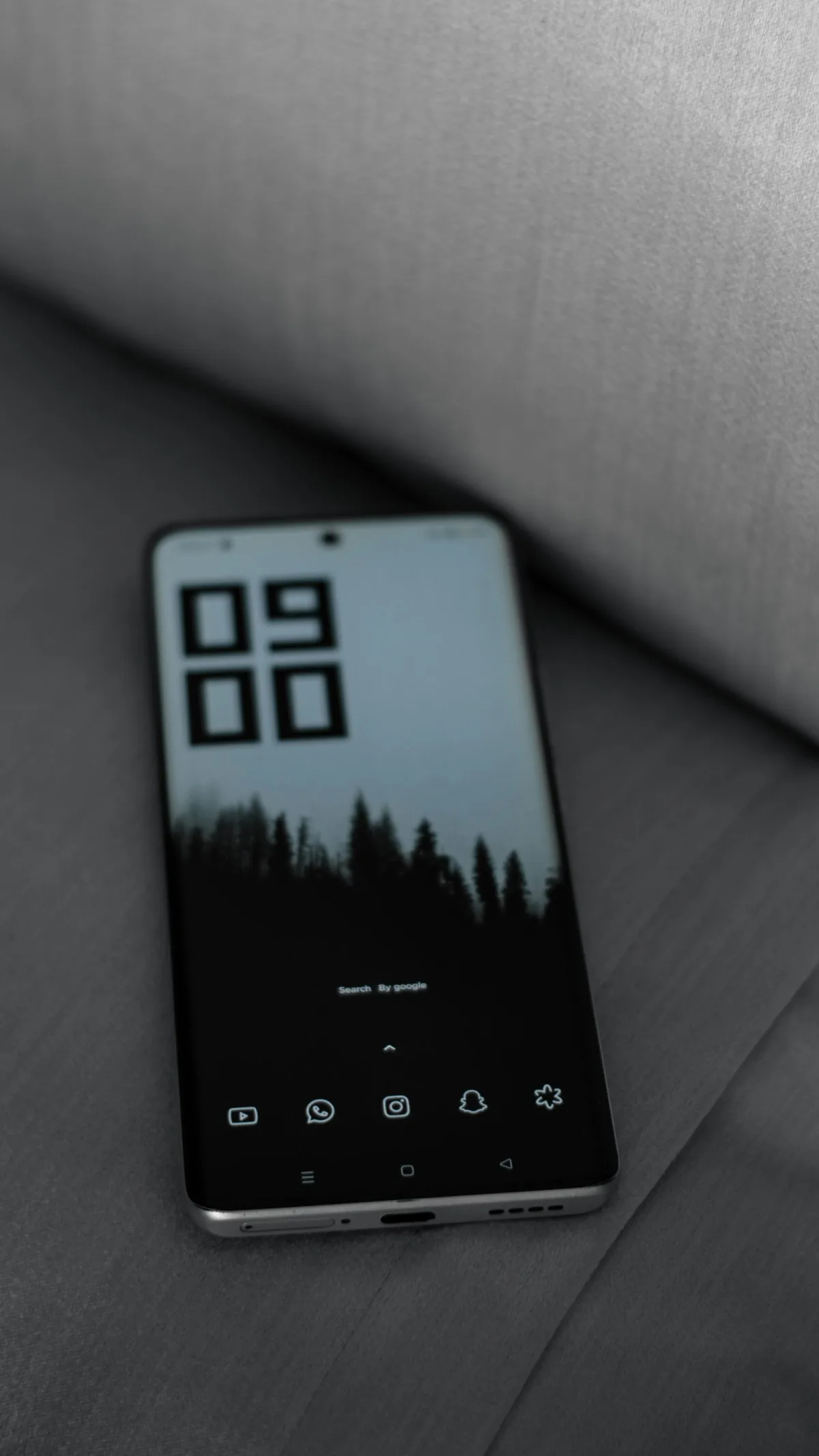
Step 6: The Wallpaper — Setting the Energetic Tone
Your wallpaper is the background environment of your entire digital home. It's present behind everything you do on your phone. In Feng Shui, background environment profoundly shapes the quality of energy in a space.
What makes a good Feng Shui wallpaper:
- Minimalist: Visual simplicity prevents your wallpaper from competing with your app icons for attention
- Calming: A color or image that creates the emotional state you want to bring to your phone use
- Meaningful without being busy: A simple landscape, a solid or gradient color, or a photograph with a clear focal point and significant negative space
What to avoid:
- Photos of people or faces as wallpapers (faces trigger social processing — your brain partially activates social-awareness circuits every time you unlock)
- Text-heavy images (cognitive load before you've done anything)
- Images associated with stress, urgency, or strong negative emotions
- Highly saturated, visually complex images
Quick source for Feng Shui wallpapers: Search Unsplash for "minimalist landscape," "misty mountain," "calm water," or "soft gradient." Filter for horizontal orientation for your lock screen and portrait for your home screen.
Step 7: The Notification Audit — Protect Your Mental Space
A beautifully organized home screen with badges on every app is a Feng Shui-designed house with an alarm going off in every room. The organization needs notification settings to match.
The three-tier notification system:
Tier 1 — Always on (badge + sound): Phone calls. Direct messages from specific VIP contacts. This tier should contain 2–4 contacts maximum.
Tier 2 — Scheduled delivery only (no badge, no sound, no lock screen): Work email, most messaging apps, calendar reminders. You'll see these when you check, not when they arrive.
Tier 3 — Off entirely: Everything else. Social media, news, shopping, games, promotional content. Everything.
iOS Scheduled Summary feature (Settings → Notifications → Scheduled Summary) lets you batch lower-priority notifications into one daily delivery rather than having them interrupt you throughout the day. This is one of the most underused features on the iPhone.
The Completed Setup: What It Should Feel Like
When you pick up your phone, you should experience:
- A wallpaper that creates a brief moment of visual calm before you do anything
- A home screen that shows only apps representing conscious choices
- A dock with your four genuine pillars — accessible instantly
- No red badges demanding attention before you've decided what you came for
- A sense that you are entering a purposeful space, not being hit by a wave
Most people complete this process in 90 minutes to 2 hours. The most common response, one week later: "I didn't realize how much my phone was stressing me out until it stopped."
Maintenance: Keeping Your Home Screen in Good Feng Shui
A Feng Shui space requires maintenance. Digital spaces drift. Apps accumulate. Notifications creep back on.
Monthly check-in (10 minutes):
- Review your Screen Time data. Any surprising numbers?
- Are there apps on your home screen you haven't intentionally used?
- Have any notification badges reappeared?
Quarterly reset (30 minutes):
- Delete any apps you haven't used in the past month
- Review your wallpaper — does it still create the right feeling?
- Revisit your dock — are these still your four pillars?
The maintenance is simple because the framework is clear. You know what belongs and why. Anything that doesn't fit the framework is easily identified.
This guide covers the iPhone specifically — Android users, see our 5-Step Phone Feng Shui Guide for a platform-general version. Ready to go deeper? Our Smartphone Notification Feng Shui guide covers the notification layer in comprehensive detail. For one more quick win: enable grayscale mode — it removes the color cues that make your newly organized screen hard to put down. Dealing with YouTube rabbit holes? YouTube Digital Feng Shui tackles the algorithm.
Tagged
More in Smartphone Feng Shui
Ready to start from the beginning?
The 30-Day Digital Feng Shui Challenge is a structured, day-by-day program to redesign your digital environment for good.
Start the 30-Day Challenge →