How Kids Bypass Screen Time on iPhone and iPad (and the Setting That Stops Each Trick, iOS 26 & iOS 27)
Changing the clock, 'One More Minute,' deleting and reinstalling games, watching YouTube through links, filming you type the passcode: the Screen Time bypasses parents actually catch, and the exact setting that closes each one under both the old iOS 26 controls and iOS 27's redesigned parental controls.
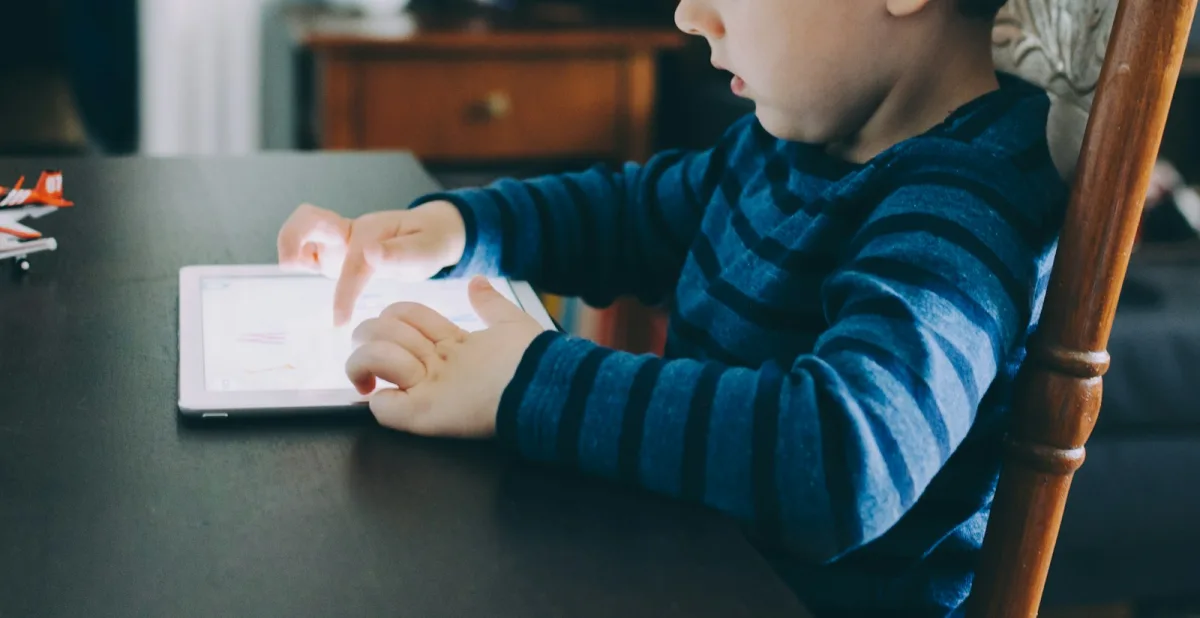
A father posted on X in August 2026 with a problem most parents haven't met yet:
"help i put screentime limits for youtube on my 11 year old's laptop and i just found out she asked claude code to vibe code her own browser using electron and chromium to get around it what do i do now"
His follow-up listed what she'd already done before that: approved her own Screen Time requests through iMessage on a device where he was signed in, turned on screen recording before handing him her phone to type the passcode, and AirPlayed her screen to the Apple TV while he entered it.
Most children aren't building their own browsers. But almost every parent who uses Screen Time eventually finds a gap. On Xiaohongshu, the Chinese lifestyle app, parents' Screen Time guides get thousands of saves, and the comment sections read like a running list of what kids tried next. We went through those threads alongside English-language reports in r/parentalcontrols, r/teenagers, and Apple's own forums, and checked each fix against Apple's documentation.
Check which version your family is on first. iOS 27 (released September 2026) redesigned Screen Time for families. App Limits became Time Allowances, Downtime became Screen Time Schedules, and the settings moved to Settings → Family → [child's name]. Apple says every device in your Family Sharing group must be on version 27 to use the new controls. If one device isn't, you stay on the previous version. This guide gives both paths.
TL;DR: the bypasses parents catch most, and the fix
- "Ignore Limit" / "One More Minute": turn on blocking at the end of the limit, and set a Screen Time passcode.
- Changing the clock: Set Time Automatically, plus lock Location Services changes.
- Delete and reinstall to reset the timer: block installing (and deleting) apps.
- Watching through a browser or shared links: website filtering, and check which apps are "Always Allowed."
- Learning your passcode: set it from your device and never type it on theirs.
- The real backstop: devices charge outside bedrooms overnight.
The Bypass Map
| Bypass | How kids do it | The fix |
|---|---|---|
| Ignore Limit / One More Minute | Tap past the limit screen | Block at End of Limit (iOS 26); requests go to you under iOS 27 Time Allowances |
| Changing the date/time | Settings → General → Date & Time | Set Time Automatically + Screen Time passcode + Location Services locked |
| Delete and reinstall | Reinstalling resets the app's counter | Block Installing Apps (and Deleting Apps on iOS 26) |
| New app before the limit ends | Download a fresh app the limit doesn't cover | Limit by category, not single apps; block installs |
| Browser back door | YouTube or social sites in Safari, Google, or in-app browsers | Website filtering: Limit Adult Websites, Approved Websites Only / Ask to Browse |
| Shared links | Send YouTube links to themselves in Messages or WhatsApp | Review "Always Allowed" apps; limit the messaging app too |
| Learning the passcode | Watching, screen recording, mirroring to a TV | Set it from your own device; watch for "Passcode Use" alerts |
| Approving their own requests | Using a family device where you're signed in | Never leave your Apple Account signed in on a device they use |
| Other devices | Laptop, old phone, a friend's phone | Same rules on every device; devices charge in a shared room |
Each is covered below.
1. "Ignore Limit" and "One More Minute"
This is the most common complaint in parent threads, and it usually isn't a hack. It's a default. Apple's iOS 26 guide says it plainly: "By default, Screen Time limits can be ignored once reached."
A Xiaohongshu mother with 1,791 saves on her post traced it to a setup gap: no separate Screen Time passcode. Under her post, other parents reported the same thing: "Time's up, the screen pops up, and my kid just taps 'ignore for today' and keeps playing."
The fix (iOS 26 controls):
- Set a Screen Time passcode for your child, from your own device through Family Sharing.
- When you set an App Limit, turn on Block at End of Limit.
- For Downtime, turn on Block at Downtime.
- Then test it yourself on the child's device: let a limit run out and see whether you can get past it without the passcode.
Known bug: an Apple Community thread from June 2026 reported a child on iOS 26.5 tapping One More Minute over and over to keep using apps, even with Block at End of Limit on. "This can be repeated indefinitely, making Downtime/App Limits ineffective," the parent wrote. A second parent reported it still unresolved in July. If you see this, update iOS and test again.
Under iOS 27: Time Allowances are built around requests. When the time runs out, your child can ask you for more, and you approve or decline from your own device. Test what your child's device shows when an allowance ends before you rely on it.
2. Changing the Date and Time
The classic. A teenager on r/teenagers in June 2026, describing how they get around limits: "i go to settings -> general -> date and time and change the time." A parent on Apple's developer forums in December 2025: "He is able to bypass all Screen Time app limits by manually changing the date under Settings → General → Date & Time."
The most-saved fix on Xiaohongshu matches Apple's documentation:
- On the child's device: Settings → General → Date & Time → Set Time Automatically on.
- Settings → Privacy & Security → Location Services → System Services → Setting Time Zone on.
- In Content & Privacy Restrictions, set Location Services to Don't Allow Changes. (Under iOS 27 this is in Content & Privacy Restrictions → Privacy Restrictions.)
Apple's support article says that when a device has a Screen Time passcode, Set Time Automatically "might be dimmed." "Might" is doing some work there. After setting it up, pick up your child's device and try to change the time yourself.
3. Deleting and Reinstalling to Reset the Timer
A parent on r/parentalcontrols in August 2026 shared what their child admitted: "When it gets close, I delete the game and install it again. Then the timer goes back to zero." On Xiaohongshu: "When their time's up they delete the app and download it again to keep playing."
The fix:
- iOS 26 controls: Screen Time → [child] → Content & Privacy Restrictions → iTunes & App Store Purchases → set Installing Apps and Deleting Apps to Don't Allow.
- iOS 27: Settings → Family → [child] → Apps & Websites → App Store → Installing Apps → Blocked. Apple's iOS 27 page doesn't mention a separate Deleting Apps switch, so check what your child's device allows.
How to spot it: the same r/parentalcontrols parent suggested comparing two numbers for the same day: the daily total in Screen Time, and the Screen On time in Settings → Battery. "If Screen Time says 2 hours and the battery screen says 6, something is resetting."
4. A New App Right Before the Limit Ends
From a Xiaohongshu parent's comment: "Kids download a new app just before the limit runs out. The new app isn't limited, so they keep going. They even hide the new app." Another parent's version: the limit was set on one game, so the child switched to a different game.
The fix: limit categories rather than single apps, so a new game falls under the same budget. This is the main idea of iOS 27's Time Allowances (Social Media, Games, Entertainment), and under iOS 26 you can still set App Limits by category. Combine it with blocking app installs (above), so new apps need your approval through Ask to Buy.
5. The Browser Back Door
When the YouTube app is blocked, the website often isn't. A Xiaohongshu mother found her child had been watching videos in the browser for weeks while she thought they were using an AI app for homework. An r/teenagers post on iOS 26.4.1 in October 2026 described three routes: a Google bookmark added to the Home Screen, links opened inside Google's AI Mode, and Snapchat's website set to "Request Desktop Site."
One reply on r/parentalcontrols showed how deep this goes: even the Settings app can reach a web page, by drilling into an account sign-in screen and tapping a privacy-policy link.
The fix:
- iOS 26 controls: Content & Privacy Restrictions → App Store, Media, Web & Games → Web Content → Limit Adult Websites (and add YouTube or others under Never Allow), or Allowed Websites Only for younger children.
- iOS 27: Settings → Family → [child] → Apps & Websites → Restrictions → Websites → Filtering → Limit Adult Websites or Approved Websites Only (Ask to Browse). Apple says Ask to Browse is on by default for children under 13 and works in "Safari and other supported browser apps." Note "supported," not all.
- Remove apps that are mostly browsers. If your child doesn't need the Google app or another browser, block it.
6. Watching Through Shared Links
Messaging apps are usually allowed all the time, because they're how kids reach their parents. That makes them a gap. A 17-year-old on r/parentalcontrols, describing what they did at 13: "Send a bunch of videos to a WhatsApp group containing only you or message yourself the link and watch them when YouTube is on downtime."
Apple itself notes that if Messages isn't set to Always Allowed, a child may not be able to send or receive messages during downtime or after a limit, so most parents leave it on. That's fine. Just know that anything an always-allowed app can open is also always allowed.
The fix: look at your Always Allowed list (iOS 26) or the apps allowed in each schedule (iOS 27) and ask, for each one: can this play video or open links? For third-party messaging apps like WhatsApp, consider giving them a time limit instead of always-on access, and keep Phone and Messages for contacting family.
7. Learning (or Stealing) the Passcode
Every other fix depends on this one. The father on X caught his daughter screen-recording the phone before handing it to him to type the passcode, and AirPlaying the screen to the TV while he entered it. Parents on Xiaohongshu describe the low-tech version: kids watching over a shoulder, or a parent typing the same code every time.
A parent on r/parentalcontrols noticed a pattern: "About once/week, I receive a notification... 'Screentime passcode used' on my son's phone... I change the code immediately after I get this message, and it shuts down whatever he's doing." A reply pointed out that if the code is a birth year, he might just be guessing.
The fix:
- Set and manage the passcode from your own device. Apple says that with Family Sharing, the parent must set the child's Screen Time passcode on their own device, not the child's. Approve requests from your phone, too.
- Don't reuse your phone passcode, a birthday, or a year.
- Watch for "Screen Time Passcode Use" notifications. On iOS 18.5 and later, Apple notifies parents when the passcode is used on the child's device. If you didn't use it, change it.
- Protect your own phone. If you forget the child's Screen Time passcode, Apple lets you reset it with your own device's passcode or Face ID. So a child who knows your phone passcode can get further than you think.
8. Approving Their Own Requests
The father's first discovery was the most avoidable: his daughter approved her own Screen Time requests through iMessage on a device where he was signed in. On a family iPad or an old Mac signed into a parent's Apple Account, the parent's approval tools may be one tap away.
The fix: don't leave your Apple Account signed in on any device your child uses alone. Give each child their own Apple Account in your Family Sharing group. Apple's setup guidance stresses this: the child shouldn't share an account with anyone else. Apple also says to add the parent to the child's contacts so requests can actually reach you. Parents on Xiaohongshu who couldn't get requests to arrive often traced it to exactly that.
9. Other Devices: Laptops, Old Phones, Friends
Screen Time only controls Apple devices in your family group. Children know this.
- Laptops and desktops. The Claude-built browser was on a laptop. If a computer can install software, a determined, technical child can work around a browser-level limit. On a Mac, use the same Screen Time controls; on Windows or Chromebooks, use that platform's family tools.
- Old phones. A retired phone in a drawer, on Wi-Fi, with no family controls on it, is a full bypass.
- Android clones. One Chinese parent found their child had used the phone's built-in app cloning feature to make a second copy of a game the limits didn't cover. Many Android phones have a similar "dual apps" or "second space" feature. Check for it, and lock it if your parental control app can.
- Friends' phones. Under a Xiaohongshu post about lock boxes, a parent warned that kids will "lie and go to a friend's house to play on their phone, or find a way to get money for a second-hand phone." No setting fixes that one.
10. When Screen Time Just Stops Working
Not every failure is the child's doing. Parents in both communities report limits that don't sync, reports stuck on "refreshing," and controls that worked for months and then quietly stopped. A Chinese mother who wrote up her troubleshooting found most of her problems traced to account setup: the child's account not fully set up as a child account in Family Sharing, or controls set on the wrong device.
What to check:
- Your child has their own child account in your Family Sharing group.
- Every device is updated. Apple says Screen Time settings sync across the family group only when devices are on current software. Under iOS 27, one un-updated device keeps the whole family on the old controls.
- You've added yourself to the child's contacts, so requests reach you.
- Compare Screen Time with Battery → Screen On time each week. A big gap means something isn't being counted.
Some parents also report that restarting a device gets around limits. Apple doesn't document this, but an Apple Community thread describes a short window after boot, roughly 30 seconds, before limits load. If your numbers don't add up and your child restarts the device a lot, update iOS and re-test.
For Younger Kids: Guided Access
For a young child using an iPad for one thing, like a reading app or a show, Guided Access locks the device to a single app. Settings → Accessibility → Guided Access. You start it by triple-clicking the side or top button, it has its own passcode, and you can set a time limit.
It's built for supervised sessions, not as an all-day control. One Xiaohongshu parent who tried to use it as a permanent lock reported a cascade of side effects and eventually erased the iPad and started again. Use it for "this app, for 30 minutes, while I cook," not for "this device, forever."
What Parents Who Win Actually Do
The most useful comment we read wasn't a setting. It was a guide author's reply to a parent who'd found their child trying passcodes over and over:
"You can see how many times they've tried. If you keep finding it, that's when you talk to them and set consequences. A child account is a management tool, not a safe-deposit vault. Check it every day. Parental supervision is still the most important part."
Parents whose systems hold up tend to share a few habits:
- They test their own setup. They pick up the child's device and try every trick on this page.
- They check the weekly report, and compare it with the battery screen.
- They keep a physical rule. "I collect all devices at bedtime and they charge in my room," one r/parentalcontrols parent wrote. Several Xiaohongshu parents ended up in the same place: "Physical separation is the real answer."
- They talk about it. The father of the 11-year-old later said he gives her a free unlimited day for each new hack she reports. Not every family will want that deal, but it turned a cat-and-mouse game into something she tells him about.
The Digital Feng Shui Angle
Feng Shui treats a home as a set of zones: places for rest, for work, for gathering. The trouble with a child's phone or tablet is that it carries every zone into every room. The game comes to bed, YouTube comes to homework, and the group chat comes to dinner.
Screen Time settings are an attempt to draw those zones in software. They work better when the home draws them too: homework at a desk or table where devices aren't, a shared charging spot outside bedrooms, and a family rule that applies to adults as well. When the room supports the rule, there's less for a child to bypass. (For the homework side of this, see our study desk guide.)
Where to Go Next
- Unbreakable iPhone App Blocker — the same loophole-by-loophole approach, for adults trying to limit themselves.
- Opal vs Screen Time vs Digital Wellbeing — how Apple's tools compare with paid apps.
- What Happens When You Keep Your Phone Out of the Bedroom — the house rule parents say works best.
- Feng Shui Study Desk for Kids and Students — where homework happens, and where devices shouldn't be.
Frequently Asked Questions
How do kids get around Screen Time?
The tricks parents report most are: tapping "Ignore Limit" or "One More Minute," changing the date and time, deleting and reinstalling an app to reset its limit, watching videos through a browser or links sent in Messages and WhatsApp, and learning the Screen Time passcode by watching (or screen-recording) a parent type it. Most of them have a specific setting that stops them.
How do I stop my child from changing the time to bypass Screen Time?
Turn on Set Time Automatically (Settings → General → Date & Time) on the child's device, and make sure a Screen Time passcode is set, which can dim that setting. Then turn on Setting Time Zone under Location Services → System Services, and use Content & Privacy Restrictions to set Location Services to Don't Allow Changes. Test it on the child's device afterwards.
Can kids reset Screen Time limits by deleting an app?
Parents report that deleting and reinstalling an app can reset its usage counter. Block it by preventing app installs and deletions: under the iOS 26 controls, Content & Privacy Restrictions → iTunes & App Store Purchases → Installing Apps and Deleting Apps → Don't Allow. Under iOS 27, Settings → Family → [child] → Apps & Websites → App Store → Installing Apps → Blocked.
What changed with Screen Time in iOS 27?
iOS 27 (September 2026) redesigned the parental controls. App Limits became Time Allowances for categories like Social Media, Games, and Entertainment; Downtime became Screen Time Schedules; and Ask to Browse lets parents approve websites in Safari and other supported browsers. Every device in the Family Sharing group must be on version 27 to use the new controls; otherwise the family stays on the previous version.
How do kids find out the Screen Time passcode?
Usually by watching. Parents have caught children shoulder-surfing, screen-recording the phone before handing it over, and mirroring the screen to a TV while the parent types. Set the child's Screen Time passcode from your own device through Family Sharing, avoid typing it on theirs, and watch for the "Screen Time Passcode Use" notification Apple sends parents when the code is used on a child's device (iOS 18.5 and later).
Is Screen Time enough on its own?
For most families it's a management tool, not a vault. Determined kids eventually find a gap, especially on shared devices, laptops, or friends' phones. Parents who report the most success combine Screen Time with a few house rules, like devices charging outside bedrooms overnight and regular checks of the usage report.
Tagged
More in Smartphone Feng Shui

Free Brick Alternative: How to Make a DIY Brick With Foqos and a $1 NFC Tag (2026 Setup Guide)
12 min read
iPhone Alarm Didn't Go Off? Sleep Focus, Attention Aware, and the Other Real Causes (iOS 26 & iOS 27 Checklist)
12 min read

Using a Second Phone Just for Social Media (or Work): Does It Actually Reduce Screen Time?
11 min read
Ready to start from the beginning?
The 30-Day Digital Feng Shui Challenge is a structured, day-by-day program to redesign your digital environment for good.
Start the 30-Day Challenge →